Meeting room displays: plan presentations, video calls and room handover
A practical meeting room display checklist covering laptop connections, video calls, audio, content sharing and handover tests.
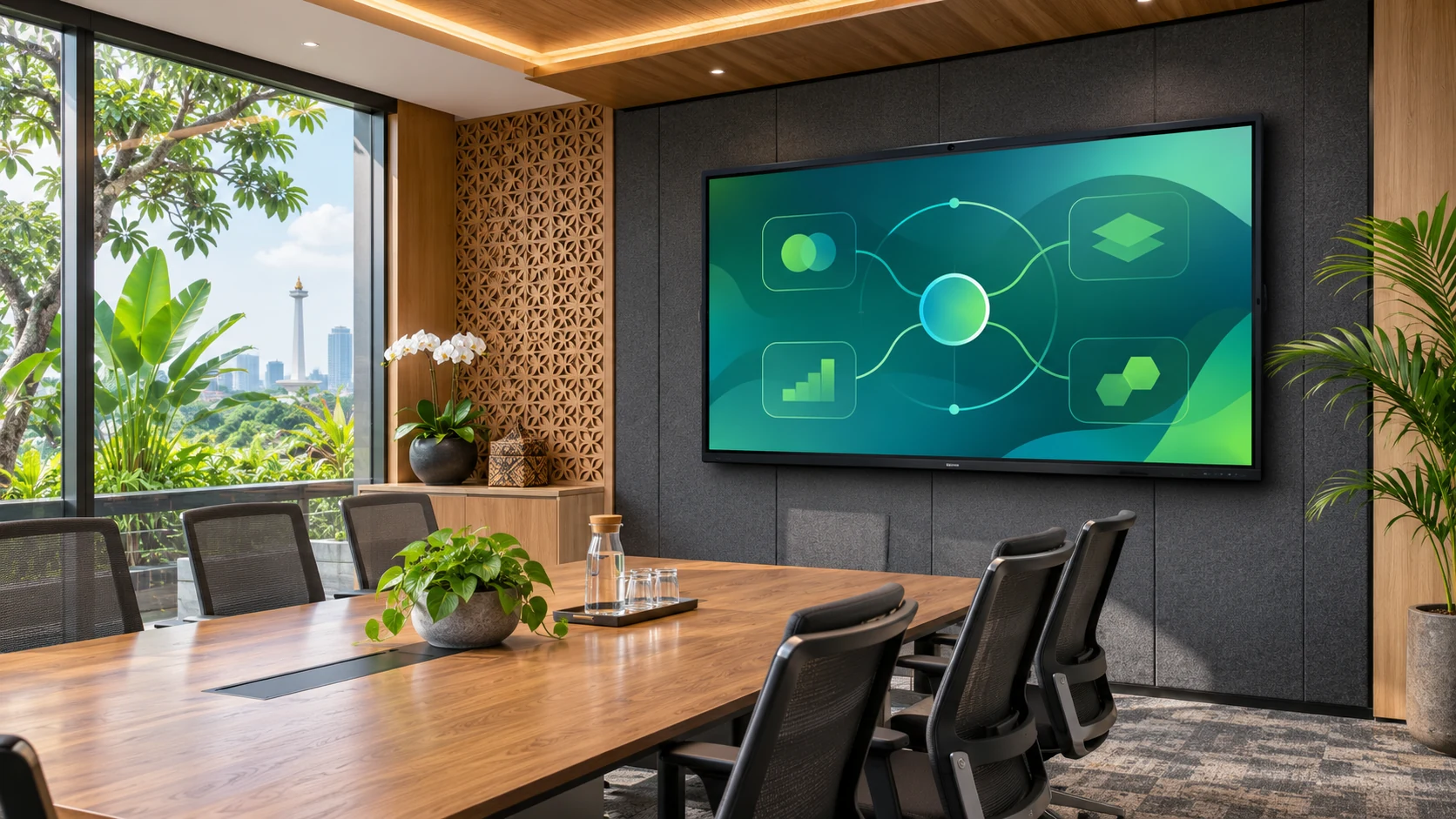
A meeting room needs a reliable sequence: enter, connect, present and leave the room ready for the next group. Decide whether the room is mainly for local presentations, remote meetings or both. These uses can require different cameras, microphones, computing devices and software, even when the display looks identical.
Separate the display from the meeting system
An interactive display is not automatically a complete video conferencing system. List the camera, microphones, speakers, host computer and meeting application separately. Microsoft publishes room-system requirements and certified hardware lists. Check the exact intended system against those lists if certification is required; do not infer certification from a display’s size or operating system.
Map every connection
Draw the path from a guest laptop to video, audio and touch. State which supplied cable performs each function and where it reaches the table. For USB-C, verify the laptop, display port and cable support the intended features. Include a tested alternative for guest devices that cannot use the preferred connection.
Test a real remote conversation
Use the actual meeting application and place a remote participant in the test. Ask them to assess speech from each seat, shared text, camera framing and any echo. Change one component at a time if a problem appears. A successful local video playback does not demonstrate a complete remote-meeting workflow.
Write a simple room handover
Create a short instruction card for starting a meeting, changing the input, adjusting sound and ending the session. Document who maintains the room computer and software accounts. Agree acceptance criteria before delivery: local presentation, remote audio, content sharing and recovery after disconnecting a cable.
Planning example
Planning example, not a customer case: an office can compare a laptop-led room with a dedicated meeting-system arrangement using the same test meeting before choosing its equipment package.
Buyer checklist
- Main meeting platform and account owner
- Room plan, seating and camera position
- Guest-laptop connection diagram
- Audio and remote participant acceptance test
- Included accessories, licenses and support scope
Common buyer questions
Does an Android display automatically include a certified Teams Rooms system?
No. Confirm the exact complete system and the relevant certification separately.
Can a wireless presentation accessory replace every cable?
Test the intended video, audio and touch workflow with that accessory and the actual devices. Keep any required fallback connection in the room plan.
Copyable project brief
Complete these fields before requesting a project quotation.
Project / location:
Room plan and user workflow:
Screen size / quantity:
Computer, software and accessories:
Installation and delivery responsibilities:
Acceptance tests and required date:
References
- Microsoft: Teams Rooms requirements ↗
- Microsoft: Certified Teams Rooms hardware ↗
- VESA: DisplayPort over USB-C ↗
JIADA product information → · Buyer guide PDF ↓
AI-assisted editorial guide from JIADA. Planning examples are hypothetical, not customer case studies. Product configurations and commercial terms are confirmed in the written project quotation.
Project questions
Orion Yang · sales@jiadatv.com