Interactive displays for classrooms: a school procurement guide
Plan classroom interactive displays around lesson workflows, readable content, teacher training and a pilot room before rolling out across a school.
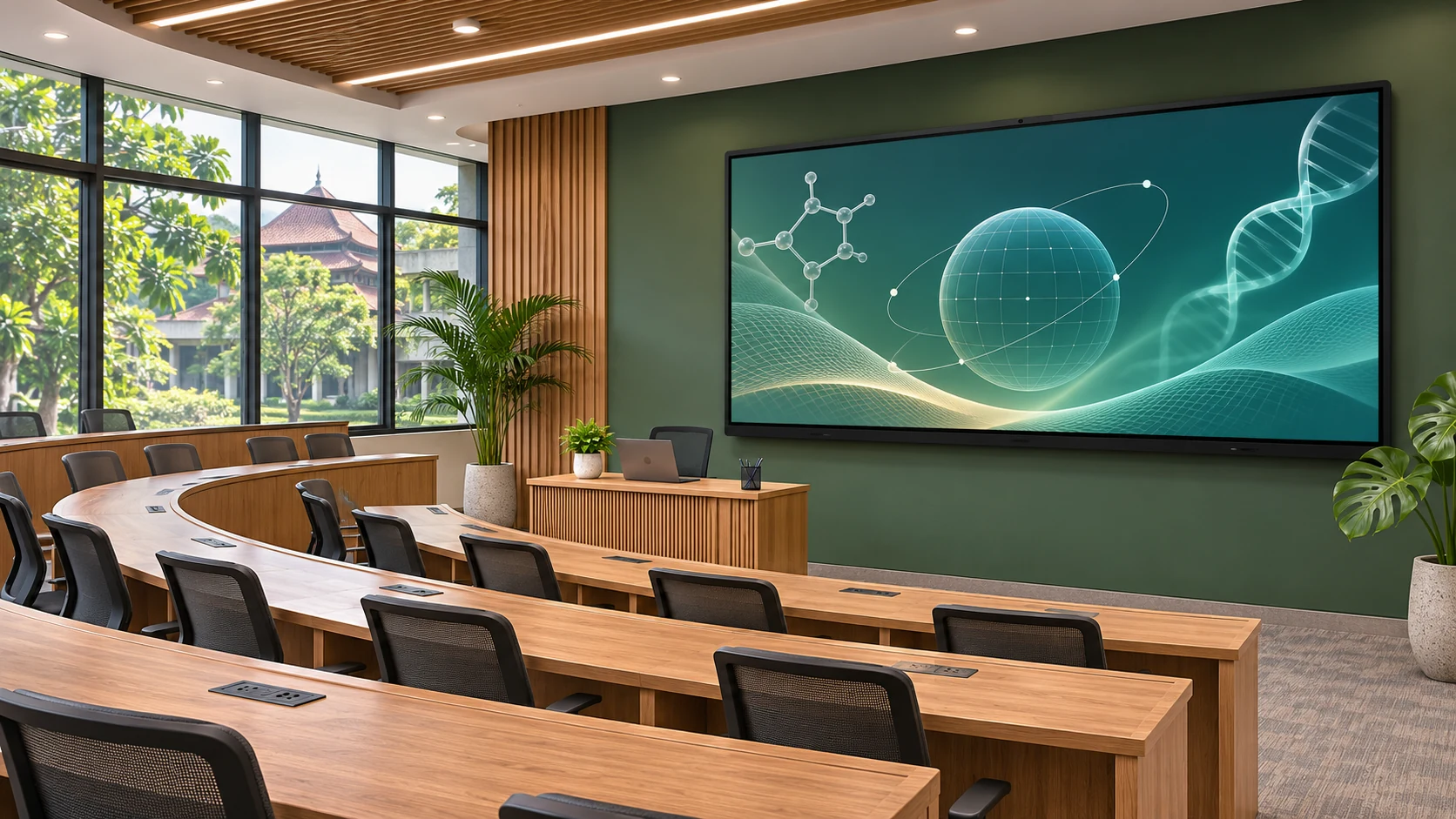
A classroom display is useful when it fits everyday teaching. Before comparing screen sizes, ask teachers to demonstrate a normal lesson: opening a presentation, annotating a diagram, playing a video and saving work. The purchasing brief should describe these tasks and the school environment, rather than only a list of hardware specifications.
Start with the back row
Bring an actual worksheet or slide deck to a demonstration. Use the smallest text and diagrams teachers expect to show. Check visibility from the back and side seats with normal daylight and room lighting. Choose screen size after this exercise; a large diagonal alone does not establish readability. Record glare, board position and any furniture that blocks the screen.
Test touch with the teaching laptop
Ask for a demonstration using the laptop, operating system and application the school will use. Confirm the video connection and the separate touch connection where required. A USB-C socket does not by itself guarantee a supported video path. Check annotation, switching sources and saving files without assuming that every model includes the same software or licenses.
Plan access, installation and support
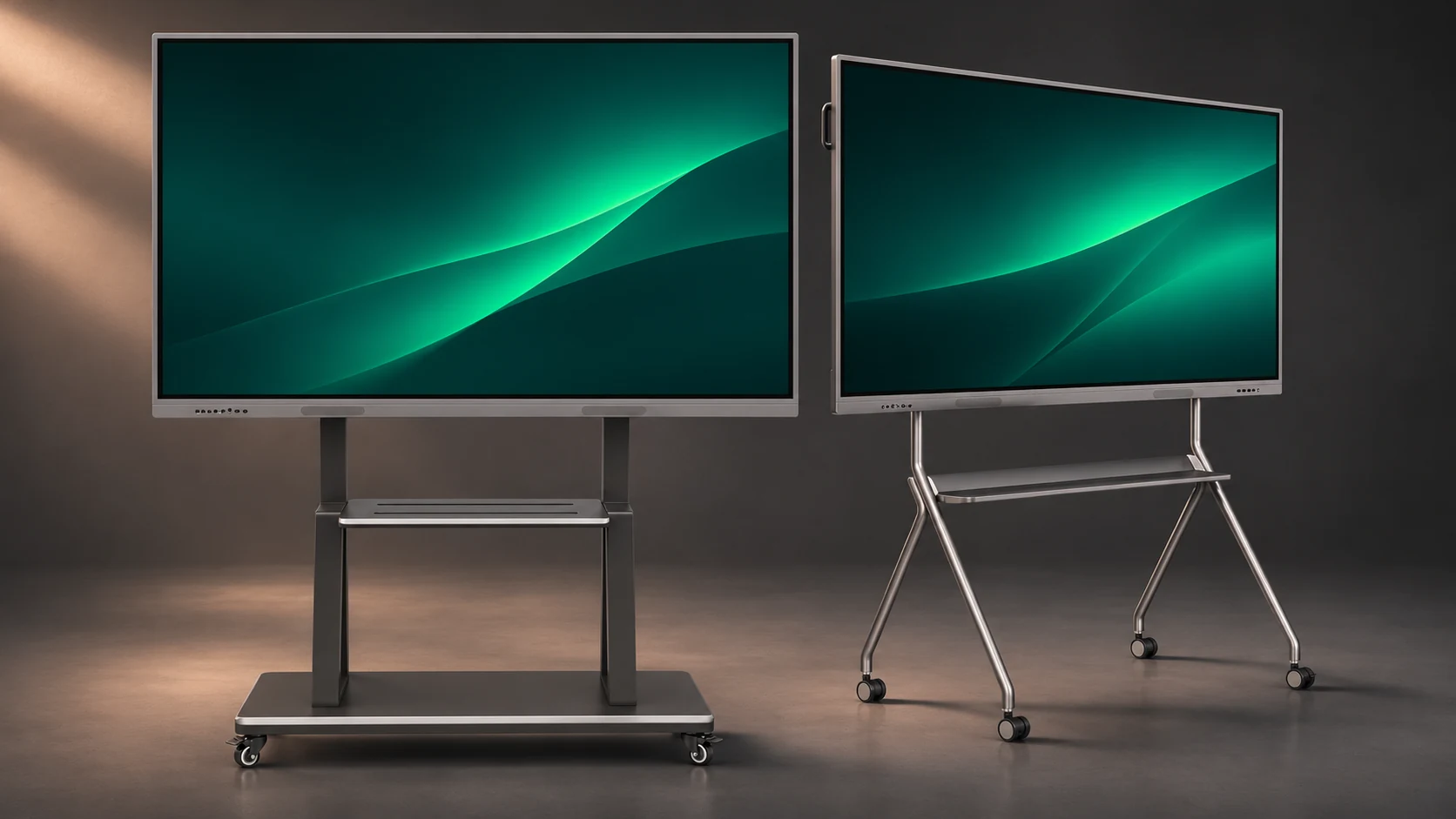
Ask an installer to assess the wall, mounting position, cable protection and power access. Where a mobile stand is proposed, confirm display weight, mounting pattern and the stand manufacturer’s limits. Explain how teachers sign out, remove personal files and request help. Keep responsibility for software updates and access control in the handover document.
Pilot before a multi-room order
Run a representative room before expanding. Let several teachers test familiar lessons and note the time taken to start class or recover from an unplugged cable. UNESCO’s technology-in-education work highlights teacher preparation alongside access and governance. Include training and a support contact in the purchase plan, not just display delivery.
Planning example
Planning example, not a customer case: a school upgrading several rooms can first test one room with different teachers, record classroom feedback and then confirm a repeatable equipment list.
Buyer checklist
- Room layout and furthest seat
- Sample lesson files and teaching laptop
- Exact model, operating system and touch specification
- Mount or stand assessment and cable plan
- Teacher induction and written support arrangements
Common buyer questions
Do all JIADA panels have the same touch specification?
No. Compare the exact quoted model with its own specification sheet; do not transfer a specification from another series.
Should the school buy a Windows OPS computer?
Only if the required workflow needs it. Confirm the OPS hardware, compatible software and valid licenses in the quotation. An external laptop may suit a different workflow.
Copyable project brief
Complete these fields before requesting a project quotation.
Project / location:
Room plan and user workflow:
Screen size / quantity:
Computer, software and accessories:
Installation and delivery responsibilities:
Acceptance tests and required date:
References
JIADA product information → · Buyer guide PDF ↓
AI-assisted editorial guide from JIADA. Planning examples are hypothetical, not customer case studies. Product configurations and commercial terms are confirmed in the written project quotation.
Project questions
Orion Yang · sales@jiadatv.com