Interactive displays for training centres and workshop rooms
Plan repeatable training sessions with the right display workflow, instructor access, room layout and saved-content handover.
Training centres often serve different instructors, course materials and groups during the same week. The useful question is not simply which display is largest, but how quickly the next instructor can begin a session with the right files and leave the room ready afterwards. Build the specification around a complete training day.
Choose the activities before the accessories
List the work participants actually do: watch a demonstration, annotate a process diagram, discuss a spreadsheet or practise a software task. Touch is valuable when it serves these activities. If the session only shows slides and video, compare a non-touch display workflow as well. Avoid buying accessories without identifying the task they enable.
Prepare for multiple instructors
Test guest laptops and the training software used by external instructors. Decide whether each instructor brings a computer or uses a shared room device. For a shared device, define account permissions, file storage and a reset procedure. Confirm that the course software and licenses permit the planned use before specifying an OPS computer.
Design movement and sight lines
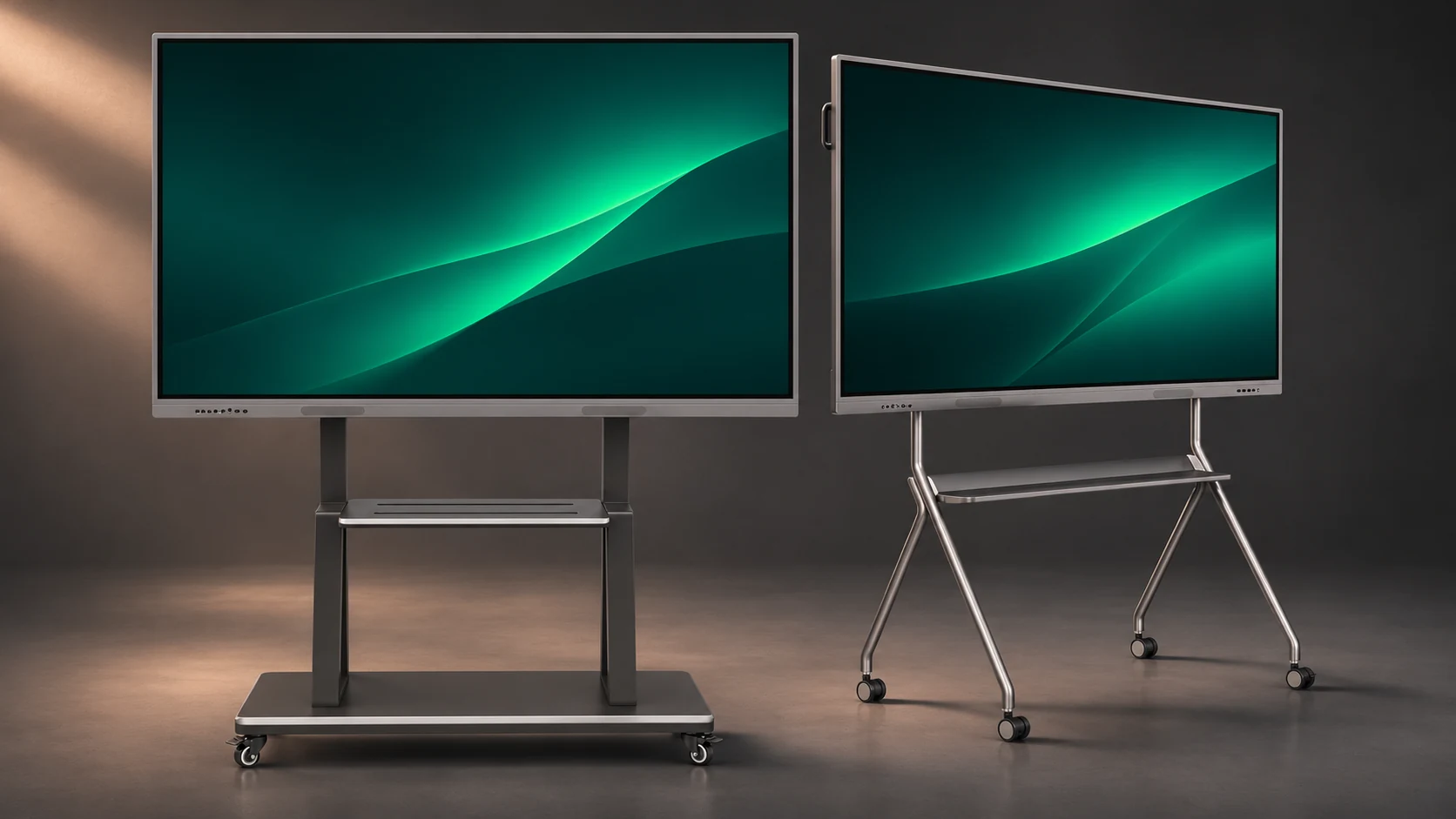
Look at how trainees move during exercises, including routes to the screen and seating that changes between sessions. Check the smallest training text from the furthest seat. A mobile stand requires a compatible display, a suitable route and use within the stand manufacturer’s limits; do not treat it as a substitute for a site assessment.
Make session closeout repeatable
Specify where annotated materials are saved and how temporary files or signed-in accounts are removed. Provide a short start-and-finish checklist and test it with an instructor who did not configure the equipment. Include a handover folder with the exact model, supplied accessories, connection diagram and support contact.
Planning example
Planning example, not a customer case: a centre sharing one room between language lessons and technical workshops can trial both course formats before fixing the computer and accessory list.
Buyer checklist
- Course formats and sample files
- Instructor laptop and software requirements
- Participant seating and movement routes
- File export, account sign-out and reset procedure
- Equipment handover and instructor orientation
Common buyer questions
Is touch necessary for every training room?
No. Compare the actual teaching activities. Annotation or direct interaction may justify touch; presentation-only sessions have different requirements.
Can one room serve multiple courses?
Plan and test the different workflows, software permissions, room layouts and reset steps before confirming the package.
Copyable project brief
Complete these fields before requesting a project quotation.
Project / location:
Room plan and user workflow:
Screen size / quantity:
Computer, software and accessories:
Installation and delivery responsibilities:
Acceptance tests and required date:
JIADA product information → · Buyer guide PDF ↓
AI-assisted editorial guide from JIADA. Planning examples are hypothetical, not customer case studies. Product configurations and commercial terms are confirmed in the written project quotation.
Project questions
Orion Yang · sales@jiadatv.com